Get your product and order data in
warrantini needs your products and orders. Connect a storefront if you have one; if you don't, there are other ways to get the data in. About five minutes.
warrantini needs two things: your products and your orders. Everything else is built on top of them.
How this data gets in depends on whether you have an online storefront connected, and which platform it's on.
A warranty claim is about a specific unit a specific person bought on a specific date. Without an order to check against, a customer has to enter their purchase details by hand and you have to take their word for it.
With product and order data in place, a customer looks up their purchase, coverage is calculated from the real purchase or fulfillment date, and nothing is entered by hand.
We only read your orders and products. We don't write anything back to your store, and we don't touch customer payment details.
Two platforms connect directly today: Shopify and BigCommerce.
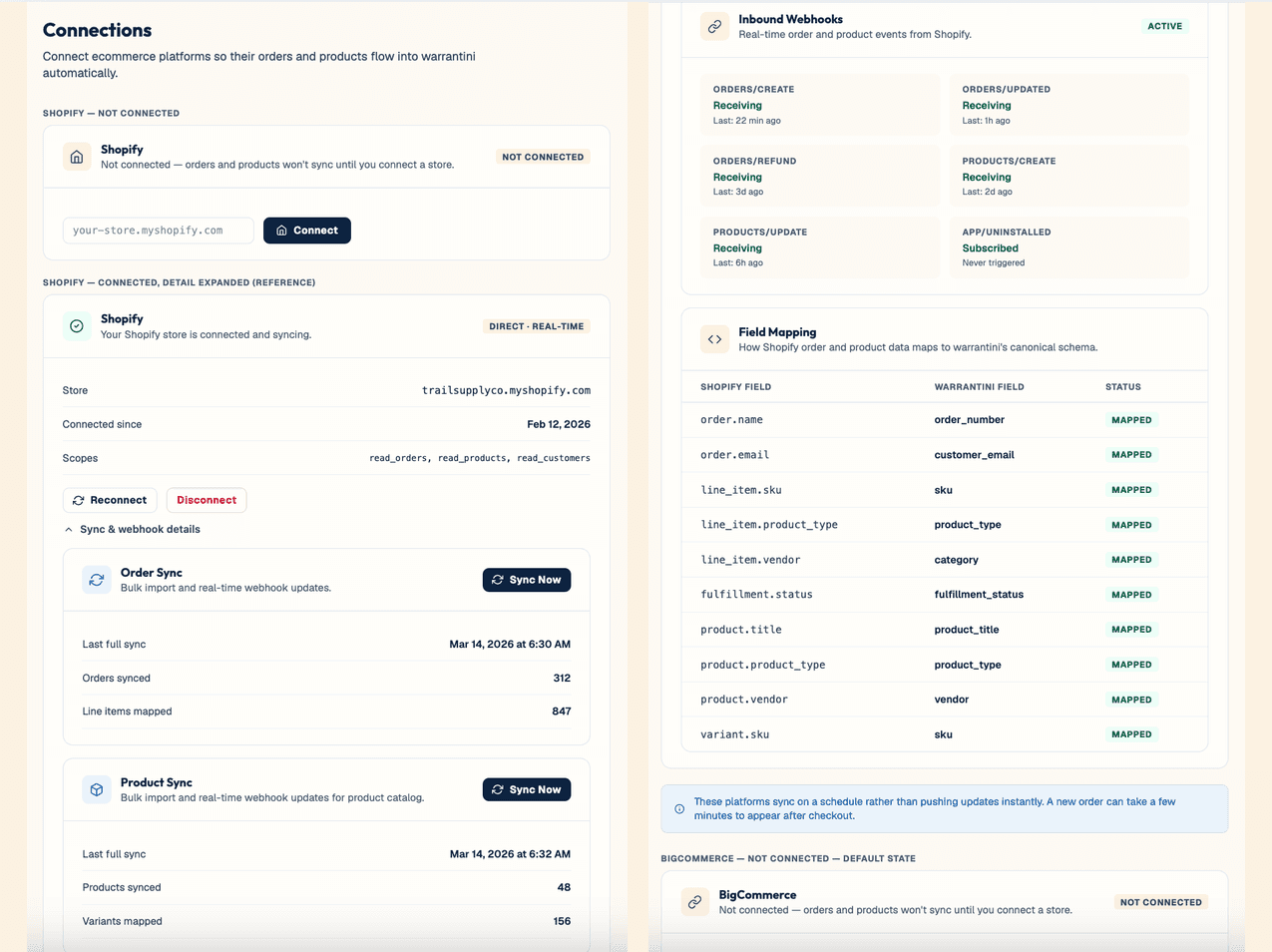
Go to Connections in the sidebar, or use the Connect step of the setup wizard.
Enter your store's subdomain — the part before .myshopify.com. If your admin URL is admin.shopify.com/store/northwood-gear, your subdomain is northwood-gear.
You'll be sent to Shopify to approve the connection. Approve it, and the sync starts running.
Who can approve this: whoever clicks through on Shopify's side needs to be the store owner, or a staff account with the "Manage and install apps and channels" permission (Shopify admin → Settings → Users and permissions). Because this is a free app, Shopify's separate rule restricting paid-app-charge approval to the store owner doesn't apply here. Shopify still blocks anyone without this permission from approving a new app connection, so if the authorization screen doesn't appear, that's the permission to check first.
There's an optional "Only import orders from" Leave it blank to import your full order history, or set a cutoff if you only want warrantini managing coverage on orders from a certain point forward. You can change this later from the Connections page or Settings → Orders Cutoff Date.
Go to Connections in the sidebar and choose BigCommerce. Connecting requires two values from your BigCommerce store's own settings: a store hash and an account UUID. In BigCommerce, go to Settings → API → Create API Account and create a temporary API account with read-only access, then use its credentials to look up your account UUID (BigCommerce doesn't display it directly). Enter your store hash and account UUID when prompted, and the sync starts once it's approved.
Who can do this: by default only the BigCommerce Store Owner can create an API account. The owner can also grant a staff member the High-Risk "API accounts" permission if you'd rather delegate it.
The first sync brings in your product catalogue and full order history, not just recent months. How long it takes depends on how much history you have — minutes for a small catalogue, longer for a large one.
After that, new orders arrive automatically as they're placed. Refunds and cancellations come through too — a refunded order voids the coverage attached to it.
Shopify and BigCommerce are the two connectors that exist today. If you're on another platform and want a direct connection built, talk to us — this is a conversation, not a self-serve picker, and it doesn't cost anything.
This applies if you sell through distributors or other retail channels, or just haven't connected a storefront yet. There are two ways to get data in.
Whichever of these you use, there's also an optional orders cutoff date — the same control the Shopify step above has. Set it from the onboarding wizard's “Another platform” step, or anytime from Settings → Orders Cutoff Date, to bound how far back coverage applies instead of importing full history.
For occasional orders, an admin can enter one manually: go to Orders → Add Order and build the order by picking existing catalogue products one at a time.
This works well for occasional orders. It isn't a volume solution — each order is entered by hand, one at a time.
If you have a technical team or an integrator, they can send your sales data to us directly on an ongoing basis. Ask us and we'll work out the details with them.
A customer can also register without a matching order, by attesting to their purchase. Those registrations arrive as pending review rather than active, and a person on your team decides whether to accept them. See Brand and publish your portal for how to turn this on.
If you're not ready to connect anything yet, skip it. You can write your coverage rules, set up your portal, and see how the whole thing looks before your product and order data is in.
What won't work until then: customers can't look up their orders, so nobody can register a product or file a claim through order lookup. Everything you've built starts working as soon as the data is in.
Go to Products and look for something you recognize. Then go to Orders and find a recent one. If your newest few orders are there and a product you sell is there, it worked.
If the sync finished but the numbers look wrong — a product line missing, orders stopping at a certain date — tell us what you're seeing rather than troubleshooting alone.