Write your coverage rules
Turn your warranty promises into rules that match your products, and find the products no rule covers. The most important step in setup.
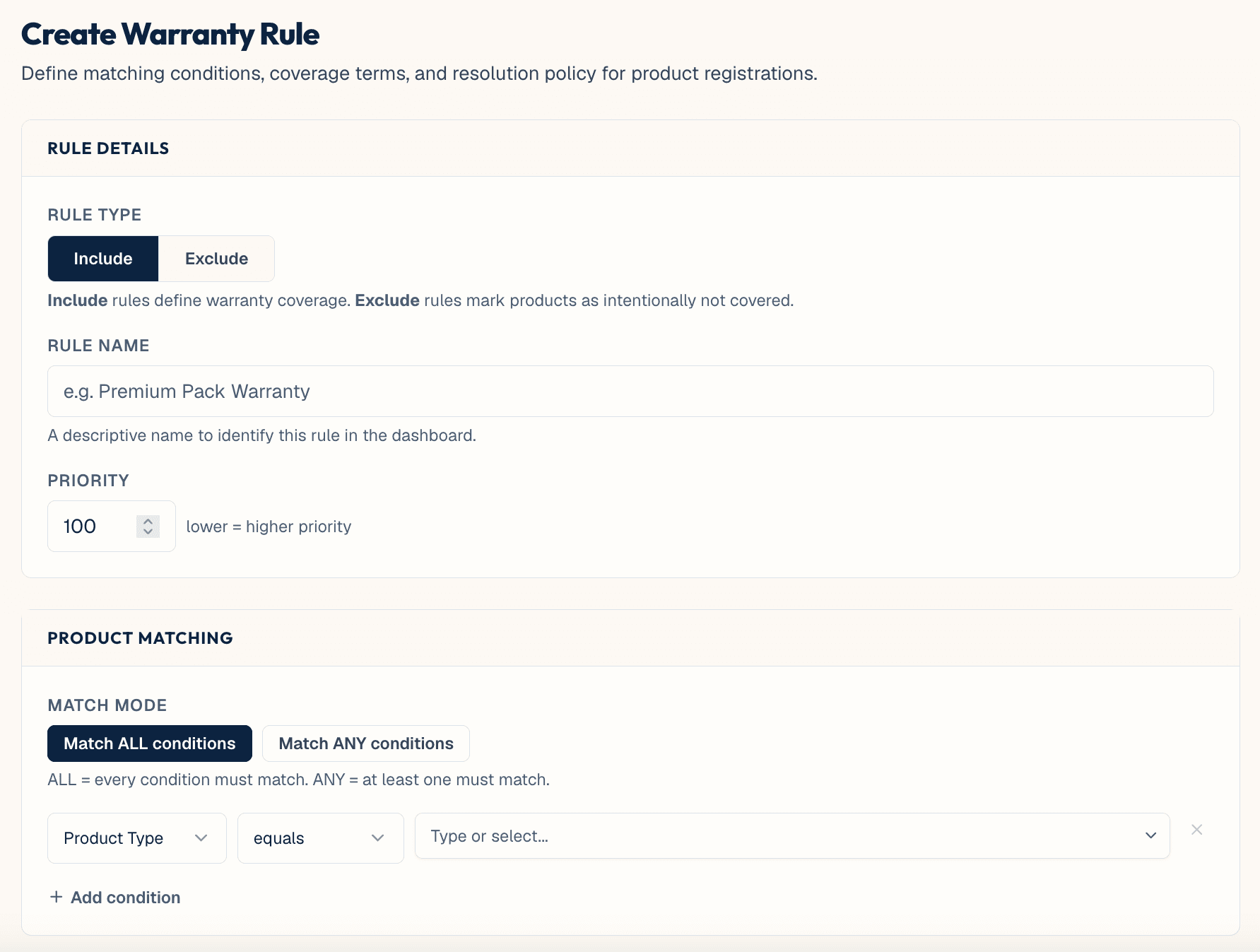
Coverage rules define what your warranty covers. Before writing one, you need an answer to: what does your warranty actually cover, and for how long? Most companies haven't written this down in one place before.
Everything else in warrantini reads from these rules.
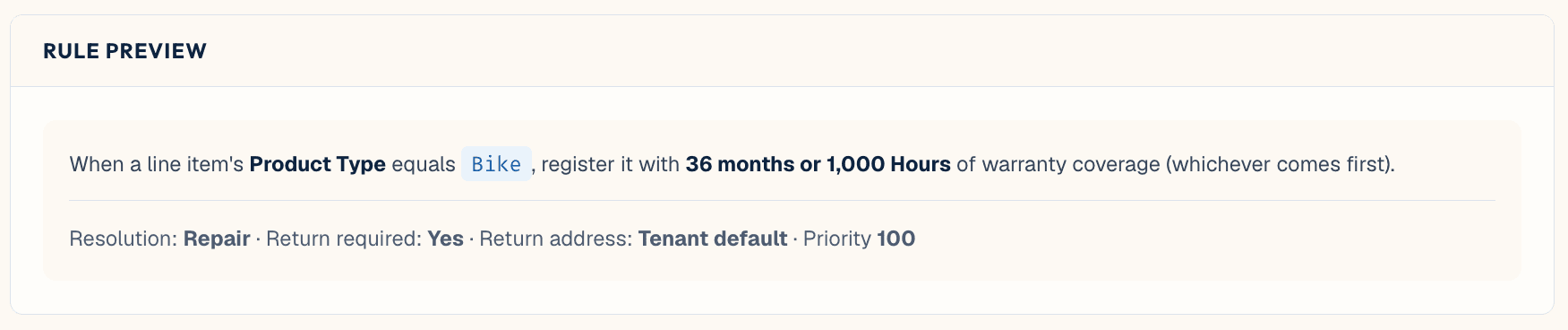
A rule has two halves: which products it applies to, and what coverage they get.
Example: "Every backpack we sell is covered for 24 months." "Every backpack we sell" is the matching half. "24 months" is the coverage half.
Most brands need two to eight rules. Writing thirty is usually a sign that exceptions should be one broad rule plus a couple of narrow ones on top.
Warranty Rules in the sidebar, then Create Warranty Rule, and pick a template if one fits. Templates cover common shapes: a flat term on everything, a lifetime term on one product line, a shorter term on consumables and accessories.
A template gives you a working rule to adjust — faster than starting blank, and it shows what a well-formed rule looks like.
Products can be matched five ways:
- Product type — the broadest and usually the best starting point. "Backpacks." "Tents."
- Category — your store's category structure, if you use one.
- Vendor — useful if you resell other brands alongside your own and their terms differ.
- SKU — one specific product, or a list of them. The most precise and the most maintenance.
- Product title — matches on words in the name. A rule matching "Pro" catches every product with "Pro" in its title, including ones added next year.
Start broad and narrow down. One rule covering all bags at 24 months, then a second rule for the one line that carries a lifetime term, is easier to maintain than fifteen SKU-level rules.
This happens routinely, and it's how exceptions are handled. Each rule has a priority, an integer set when the rule is created or edited. When a product matches more than one rule, warrantini uses priority to decide which one wins.
Resolution order: rules are checked in priority order, lowest number first, and the first one whose conditions match wins — so a lower priority number is checked earlier and takes precedence over a higher one. If two rules share the exact same priority number, an exclude-type rule wins over an include-type rule at that tie. It isn't the most specific rule that wins, and there's no conflict screen — priority is the whole mechanism, so set it deliberately whenever two rules could overlap.
Example: a lifetime term on one flagship pack, inside a catalogue where every other bag gets 24 months.
- Rule A: SKU is
NW-PACK-65→ lifetime, priority 1 - Rule B: product type is
Backpacks→ 24 months, priority 10
Give Rule A the lower priority number so it's checked first and wins for that one SKU; Rule B stays priority 10 as the catch-all for everything else.
The main setting is the term: how long coverage lasts, in months, or lifetime with no expiry. A unit-count limit can be set instead of or alongside a term — for example, coverage up to a set number of uses — and free-text conditions can describe what's covered or excluded.
Coverage isn't backdated to the purchase date by choice — the window starts from the product's fulfillment date if one exists, and falls back to the order date only when there's no fulfillment date. This is fixed platform behavior, not a per-rule or per-organization setting.
warrantini doesn't support transferability on resale or a deductible today. Coverage terms are duration, unit limits, and the conditions you write in.
A policy document can be attached to a rule, so the exact terms a customer agreed to are shown to them in the portal and stored against every registration created under that rule. Attach the matching document if your written warranty policy differs by product line.
Attach the policy document. It's the difference between "our records say you're covered for 24 months" and "here is the document that says so, as it read on the day you bought it."
Every rule shows which products it currently matches before you commit to it. Review that list to catch a forgotten SKU or an accessory that shouldn't be included.
Once rules are in, go to Product Coverage in the sidebar. It sorts every product into buckets:
- Covered — a rule applies. Which rule, and for how long.
- Excluded — deliberately not covered. You said so.
- No rule — no rule applies and you never said either way. These are flagged with a coverage gap indicator.
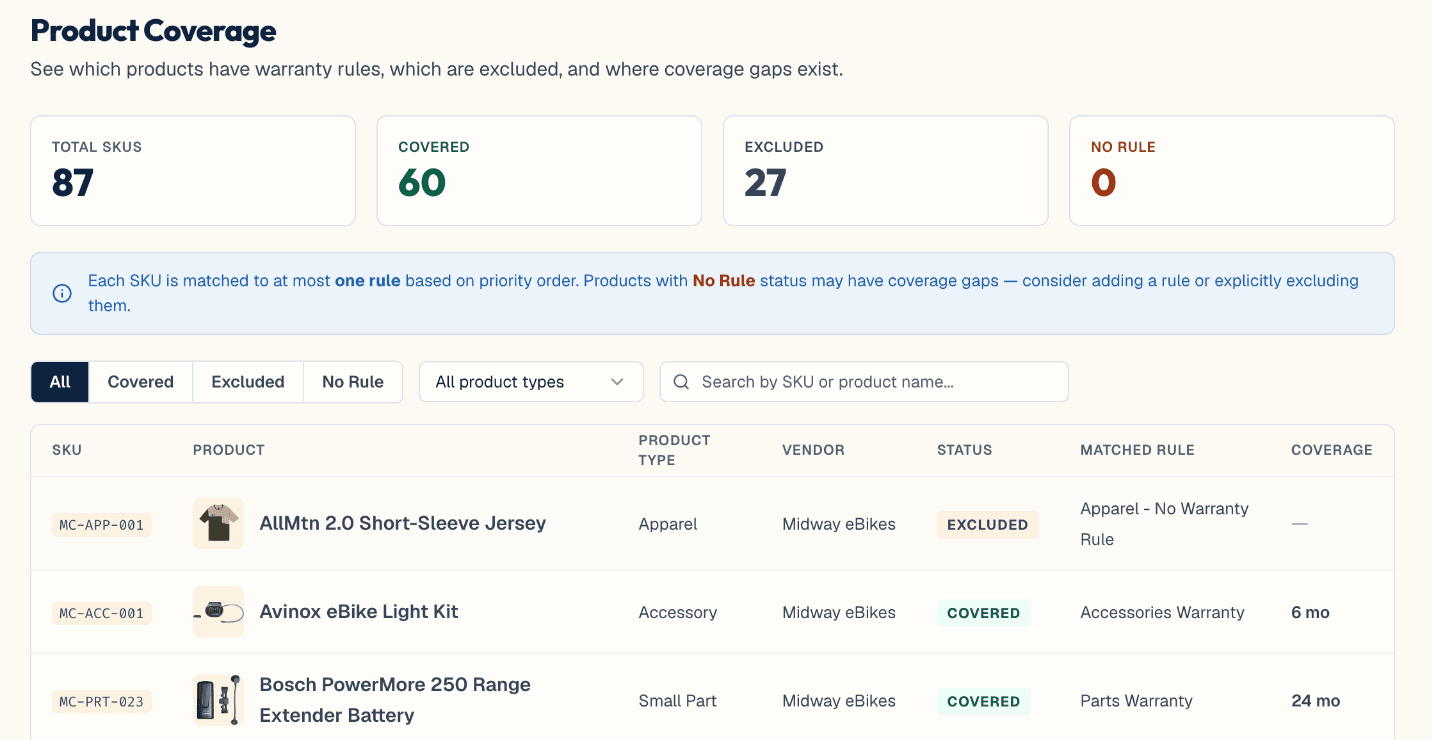
Work the gaps to zero. Every product flagged with a coverage gap is a customer who might file a claim with no rule to answer it.
Gaps are usually accessories, spare parts, and gift cards that genuinely shouldn't be covered — mark them excluded. The audit re-runs as the catalogue changes, so a new product line with no rule behind it shows up here rather than as a surprise claim.
A rule can be edited any time. Editing it does not change coverage anyone already has.
A registration remembers the rule it was created under, including the term and the policy document, as of the day it was created. A customer registered under an old 12-month rule keeps 12 months; anyone registering after the edit gets the new term.
Coverage terms don't change for existing customers when you edit a rule. This means the cost of getting a rule slightly wrong is low, but publishing the portal before the rules are right has a real cost — get the rules close, then publish.
After six months of real claims, warrantini suggests rule adjustments based on what's actually coming in — a term that looks too generous on one line, a product type generating claims no rule anticipated. These are suggestions only; nothing changes unless you change it.